Listen

The bold words are the open book. The gold words are the chapter, name first, then the mark count. The rest of the line is the library: how many books are on disk, how many series, how many titles stand on their own, how many you are listening to, how many are finished, and about how many hours that comes to.
Click a book on the left. In a series, click a title in the series list. The list stays, that title is highlighted, and the cover and details open beside it. Double-click a title to start it. If you have listened before, it plays from the saved place. If you have not started it, it plays from the beginning. A single click on the book that is already open leaves it playing or paused. The line under the buttons names the library: how many books are on disk, how many series, how many titles stand on their own, how many you are listening to, how many are finished, and about how many hours that comes to. While the book is playing, the middle button becomes two bars. Press the bars to pause.
If the book says Not on disk, play asks you to download it first. NovelWarp plays the file on this computer.
The button row
These buttons stay on the screen while the description scrolls.

Prev = previous chapter. -10 = back 10 seconds. The triangle = play. +10 = ahead 10 seconds. Next = next chapter.
| What you see | What it does |
|---|---|
| Prev | Previous chapter. The icon is a triangle and a bar, pointing left. If you are more than a few seconds into the current part, the first press returns to the start of that part. Press it again for the part before. Chapters |
| -10 | Back 10 seconds. The icon is two triangles pointing left. |
| The triangle | Play. The button shows only the triangle. While the book is playing, the triangle becomes two bars, and those bars pause. |
| +10 | Ahead 10 seconds. The icon is two triangles pointing right. |
| Next | Next chapter. The icon is a bar and a triangle, pointing right. |
| Chapters | Opens the chapter list. |
| Speed, minus, 1.0x, plus | The gold number is the speed, such as 1.0x. Minus is slower. Plus is faster. |
| Volume 34%, minus, slider, plus | The percent is how loud the book is. 100% is as loud as NovelWarp plays. The minus and plus buttons change it by 5 percent. The slider between them does the same. |
- Prev, above the triangle with a bar, jumps to the previous chapter.
- -10, above the two left triangles, skips back 10 seconds.
- The single triangle plays. The two bars pause.
- +10, above the two right triangles, skips ahead 10 seconds.
- Next, above the triangle with a bar, jumps to the next chapter.
- Chapters opens the chapter list.
- Speed is the label above the minus button, the gold speed, and the plus button. The gold number is the speed, such as 1.0x.
- Volume is the label above the volume control. The percent beside it is how loud the book is. 100% is as loud as NovelWarp plays. The minus and plus buttons change it by 5 percent. The slider between them does the same.

Two bars share the space between the volume control and Sleep. Each has a name above it. Time in Chapter is the part you are hearing now. Time in Title is the whole book. On both bars the white time is where you are, and the gold time is what is left. Drag a bar and let go. Time in Chapter jumps inside the current part. Time in Title jumps anywhere in the book.
The keyboard
These keys work when you are not typing in the search box, a bookmark note, or a series box, and when Account, Chapters, and About are closed.
| Key | What it does |
|---|---|
| Space | Play or pause |
| Left arrow | Skip back |
| Right arrow | Skip ahead |
| Ctrl+Left | Previous chapter |
| Ctrl+Right | Next chapter |
| Up arrow | Volume up 5 percent |
| Down arrow | Volume down 5 percent |
| Minus | Slower |
| Plus, or the equals key | Faster |
| C | Open the chapter list |
| B | Save a bookmark at this moment |
Speed
Speed runs from 0.5x to 4.0x, in small steps of 0.1. The voice stays at a natural pitch. Only the pace changes. The speed is remembered with the book.
Your place
NovelWarp saves your place about every five seconds while you listen, again when you pause, and again when you close the window. It also remembers which book was open, and whether you were looking at a series. The next time NovelWarp opens, that book is waiting at the saved place, with the series list still beside it when the book belongs to a series. Press play to continue.
If the book has been sitting for more than five minutes, NovelWarp backs up 10 seconds when you open it. A short note says it backed up so the last line is easy to find.
When the book reaches the end, it pauses, the row says Finished, and a note says Finished.
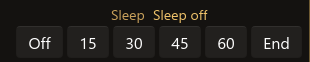
The sleep buttons sit at the right end of the player row, under the word Sleep. They can pause the book after a number of minutes, or at the end of the chapter you are in. In this picture the gold words say Sleep off.